
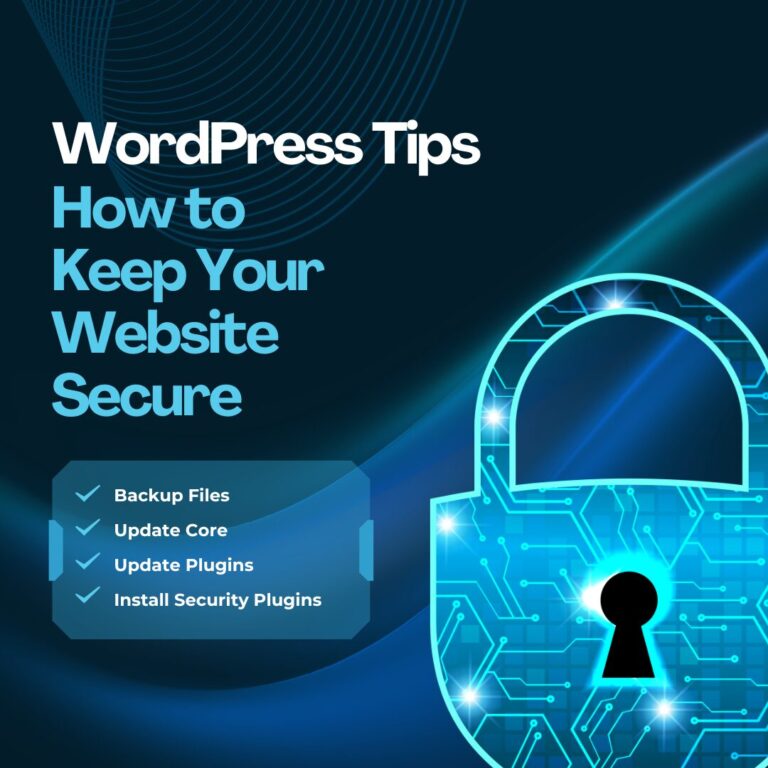
The #1 rule of WordPress security is to keep your WordPress core files, your plugins and your theme updated. The fine programmers at WordPress work tirelessly to update WordPress to bring you new functionality – and to close any security holes that are found.
The WordPress core and your plugins need to be updated on a regular basis. Your theme will probably need to be updated at some point too. If you don’t keep your files updated, your site will be vulnerable to hackers who have figured out ways to take advantage of older versions. The update process is fairly simple with 1-click updates built right into your dashboard. Just remember to always backup before you update. Occasionally there will be a problem and you don’t want to be left dead in the water with a blank site or error message until you’re able to contact someone for help.
Do-it-Yourself WordPress Updates
- Always backup your site files & your database before updating. This can easily be done via your hosting control panel or with a plugin like UpdraftPlus.
- Log into WordPress. If the core files need updating there will be a notice at the top of your screen. You can follow the links to update WordPress.
- Once you’ve updated – check your site. Does everything look normal? Ok, good, continue.
- Next update your plugins.
- Again, check your site. If everything looks ok – Great, you’re done!
What if?
If you run into problems – after the update something looks wrong or you’ve got the famous WSOD (white screen of death). Don’t worry, you can put your site back the way it was using your backups. If you’re using cPanel you can log in and restore the backup copy of your database and WordPress files.
Then what?
Once you’ve got your site back up and running you can attempt a manual WordPress update. There are detailed instructions in the WordPress documentation. During the manual upgrade you are able to determine if there was just a problem with one of the WordPress files, or if there was a conflict with your theme or one of the plugins.
Rather not do it yourself?
No problem, we’ve got you covered with Managed WordPress Hosting!
What else can I do to keep hackers at bay?
We also recommend installing a security plugin like Solid Security. These plugins will help lock down your site, making it harder to get into by tracking and banning repeated login attempts from the same computer.
Use Two-Factor Authentication (2FA)
One of the most effective extra steps you can take is enabling two-factor authentication on your WordPress login. With 2FA turned on, logging in requires both your password and a second confirmation — usually a code sent to your phone or generated by an app like Google Authenticator or Authy. Even if a hacker gets hold of your password, they still can’t get in without that second factor. Solid Security includes 2FA as part of its feature set, so if you’ve already installed it, this is worth turning on.
What 9 Planets Does on Your Behalf for Digital Security
If you’re hosted with us, your server is already running Imunify360 — a server-level firewall and malware scanner that works around the clock to catch threats before they reach your site. It’s one of the layers of protection that comes built into every 9 Planets hosting plan, and it works alongside (not instead of) the good habits covered in this article.
Read our guide about safety practices for staying secure online.