

Is your WordPress website secure?
How can you tell?
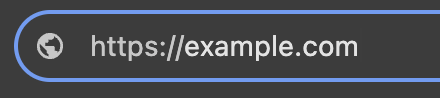
Look at the address bar in your browser. Does your website address start with HTTPS://www.yourwebsite.com?
If it still starts with plain HTTP, your site is not secure.
Google Chrome now marks all HTTP sites as “Not Secure.” That warning is visible to every visitor before they’ve read a single word on your page — and it can send them straight to a competitor instead. Getting an SSL certificate in place is how you get rid of it.
How does this affect you?
Do you have a search box or collect any information from your visitors, such as via a contact form, subscription sign-up or as part of a purchase?
If your site is being viewed in Incognito mode and/or if your site collects information via any type of form and isn’t secured with an SSL certificate, your website could be flagged as Not Secure. This label may scare your potential customers and could cause them to exit your site without doing business with you.
What should you do?
It’s easy! It’s easier than you might think. Most hosting providers include a free SSL certificate with every plan — 9 Planets does. You just need to make sure your site is configured to use it.
What’s an SSL certificate?
An SSL certificate creates a secure connection between your website and the server, so that any info your visitor sends to you via your website will be protected and kept secure. It’s also what helps protect businesses that are selling products directly from their website (to safeguard visitors’ personal information like credit card numbers and other data).
Adding an SSL certificate to your website creates that extra layer of security Google Chrome is looking for. It will add the green lock to your site name, and when your visitors start to fill out a form it will show that you’re secure.
How do you add an SSL certificate?
Most hosting companies include a free SSL certificate with your account — check with your host to confirm yours is active, and whether your site needs any additional configuration to use it. Some hosts handle the setup for you; others require a quick configuration step on your end.
If you sell products online, you may want to get a paid SSL certificate instead of a free one, for added insurance coverage. 9 Planets Hosting includes a free SSL certificate with every hosting plan, but if you need added insurance we also offer several paid certificate options that may work well for you.
Once your SSL certificate is active, you need to connect it to your WordPress website. If you’d like to configure it yourself, the Really Simple SSL plugin is a reliable option that walks you through the process step by step.
Steps to Set Up the SSL Connection
- Upload the plugin to your Dashboard > Plugins area.
- Activate the plugin
- You should see a notification asking you to enable SSL – click it and log into your site again

That’s it! You should now see a lock next to your website name at the top of the browser window, and when you click the lock, it should say something like “Secure” or “Secure Connection.”
Your WordPress website has now been updated with an SSL certificate.*
If your website has been set up in Google Analytics or Search Console, you will need to update your site information so that Google knows your site is now HTTPS://www.yourwebsite.com instead of HTTP://www.yourwebsite.com. For more instructions on how to update this (if your host isn’t doing it for you), check out this helpful article from Really Simple SSL.
*NOTE: If your site still shows as “Not Secure” after adding your SSL certificate, it’s usually a mixed content issue — meaning one or more images, scripts, or stylesheets on the page are still loading over plain HTTP instead of HTTPS. Really Simple SSL has a helpful guide for tracking down and fixing mixed content. You can also contact us and we’ll sort it out for you.